

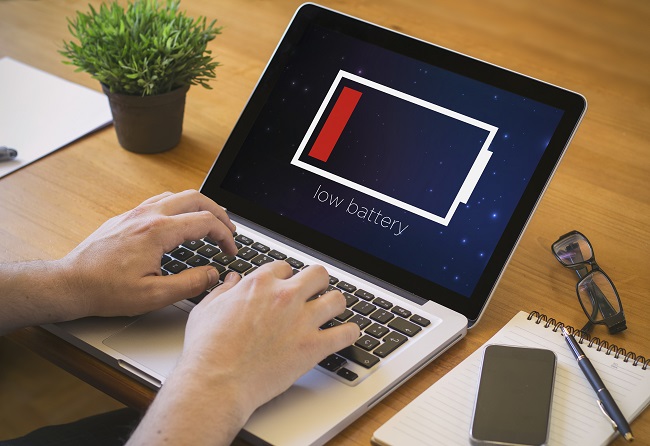
In today’s fast-paced digital world, your laptop is more than just a device — it’s your mobile workstation, entertainment hub, and personal assistant. But nothing disrupts productivity faster than watching your battery percentage drop at an alarming rate. While manufacturers continue to improve battery technology, many users unknowingly engage in daily habits that drain battery life faster than expected.
If you find your laptop dying too soon — even when it’s relatively new — your usage patterns may be the real culprit. This guide explores four common habits that drain your laptop battery fast, along with practical tips to help you extend your device’s runtime and lifespan.
1. Keeping Screen Brightness Too High
Your laptop’s display is one of the most power-hungry components. Running it at full brightness can consume up to 30–40% of your battery power, especially on devices with large, high-resolution or OLED screens. Many users keep the brightness maxed out without realizing how much it shortens usage time.
Why it drains power:
The backlight or pixels require more energy to maintain higher brightness levels. Over time, this constant strain can also lead to faster screen wear and potential color fading.
How to fix it:
- Lower your brightness to around 50–70% for normal indoor use.
- Enable adaptive brightness, which automatically adjusts based on ambient light.
- Use dark mode or darker wallpapers to reduce screen energy consumption.
- When working in low-light environments, dim your display further — your eyes will thank you too.
A small adjustment in brightness can easily add an extra hour or more of battery life during typical use.
2. Running Too Many Background Apps and Processes
Another hidden power drain comes from the multitude of apps and background processes silently running on your system. Software like chat tools, update managers, and cloud-sync services may continue working even when you’re not actively using them.
Why it drains power:
Each open application uses CPU cycles and memory, forcing the processor to work harder — and the harder it works, the more power it draws. This also generates heat, which activates the cooling fan, further draining your battery.
How to fix it:
- Open Task Manager (Windows) or Activity Monitor (Mac) to see what’s running.
- Close unnecessary apps and browser tabs.
- Disable startup programs that automatically launch when you turn on your laptop.
- Turn off auto-sync for cloud apps like OneDrive, Google Drive, or Dropbox when not needed.
- Periodically restart your laptop to clear cached processes.
By keeping background activity under control, you can significantly improve both performance and battery efficiency.
3. Keeping Wi-Fi, Bluetooth, and Peripherals Always On
Connectivity features such as Wi-Fi, Bluetooth, and external device ports are essential for productivity — but they’re also constant power consumers. Leaving them on when not in use is one of the easiest ways to waste energy without realizing it.
Why it drains power:
Even when idle, these wireless connections continue to search for signals or maintain connections, drawing small but continuous amounts of power. Similarly, plugged-in peripherals like external hard drives, mice, or USB devices consume energy even when you’re not using them.
How to fix it:
- Turn off Bluetooth if you’re not using wireless accessories.
- Disconnect external drives or dongles when idle.
- Switch to Airplane mode when working offline or watching downloaded content.
- Use Wi-Fi selectively — disable it if you’re working on local files.
These small steps can easily extend your laptop’s runtime, especially during travel or outdoor work sessions where charging options are limited.
4. Ignoring Power and Battery Settings
Modern laptops come with sophisticated power management settings, but many users stick to default modes that prioritize performance over efficiency. Running your laptop on “High Performance” mode all the time forces it to deliver maximum power output, reducing battery life dramatically.
Why it drains power:
Performance modes keep the CPU, GPU, and fans running at high levels even during light tasks, preventing the system from conserving energy. Over time, this habit also generates more heat, accelerating battery wear.
How to fix it:
- Switch to Battery Saver (Windows) or Energy Saver (Mac) mode when on the go.
- Create a custom power plan that balances performance and efficiency.
- Adjust sleep and display timeout settings to turn off your screen faster when idle.
- Keep your operating system and drivers updated — power optimization improvements are often included in updates.
By fine-tuning your laptop’s settings, you can gain up to 20–30% longer battery life without sacrificing much performance.
Bonus Tips for Maximizing Battery Longevity
Beyond daily habits, maintaining a healthy battery requires a bit of long-term care. Here are a few extra ways to keep your battery performing well for years:
- Avoid constant 100% charging. Lithium-ion batteries prefer partial charging (between 20% and 80%) instead of staying full for long periods.
- Keep it cool. High temperatures degrade battery cells faster. Avoid using your laptop on soft surfaces that trap heat, like beds or couches.
- Use genuine chargers. Non-certified chargers can damage the battery or supply inconsistent voltage.
- Update firmware and BIOS. Manufacturers often release updates that improve battery calibration and thermal management.
- Shut down occasionally. Instead of keeping your laptop in sleep mode all the time, give it a full shutdown to reset power management.
When to Replace Your Battery
Even with perfect care, every laptop battery eventually degrades. If your device shuts down abruptly, holds less than 70% of its original capacity, or overheats while charging, it may be time for a replacement.
You can check your battery health report using built-in tools:
- Windows: Run
powercfg /batteryreportin Command Prompt. - Mac: Hold the Option key, click the Apple menu, and choose System Information → Power.
If the health is below 70–75%, replacing the battery can breathe new life into your laptop and restore several hours of unplugged use.
Conclusion: Small Habits, Big Impact
Your laptop’s battery life isn’t just determined by its hardware — it’s shaped by your habits. Keeping your screen dimmer, managing background apps, controlling wireless connections, and optimizing power settings are simple yet powerful steps to stretch every charge further.
By being mindful of how you use your laptop, you can not only enjoy longer battery life day-to-day but also extend the overall lifespan of your device. After all, it’s not just about lasting longer on a single charge — it’s about keeping your laptop efficient, reliable, and ready whenever you need it most.

WeeklyMinds.com is proud to feature an author who brings a wealth of knowledge and experience to our blog. Weekly Minds is an accomplished freelancer writer with 12 years of experience in the field.
WeeklyMinds.com has a passion for sharing insights and perspectives on political, news, technology, home improvement, interiors and many more. Their unique perspective on current affairs has been featured in numerous publications and they have been a guest speaker at college fests.
WeeklyMinds.com is also an avid interest in writing and reading and enjoys singing, music, shopping, travelling and some more. In their free time, they can often be found of reading the novels and various current topics.
We are thrilled to have Elia Scala as a contributor to WeeklyMinds and look forward to their continued insights and contributions to our blog.